You can't actually "transfer" a domain to Systeme.io in the registrar sense—Systeme.io is a hosting and funnel platform, not a domain registrar. What you can do is connect your GoDaddy domain to Systeme.io by pointing its DNS records to their servers.
The good news: this keeps your domain registered with GoDaddy (so you keep paying their renewal fees) while using it on your funnels. The process takes about 15 minutes of setup and 24–48 hours of waiting.
👉 Connect your GoDaddy domain to a free funnel platform here
Why This Confusion Happens
Most people assume "transfer" means moving the domain registration from GoDaddy to Systeme.io. That's not how it works.
Systeme.io doesn't sell domains or accept registrar transfers. Instead, it gives you DNS records (CNAMEs) to add inside your GoDaddy account. Once those records are in place, your domain points to Systeme.io's servers, and your funnels load on your custom address.
The root issue is terminology. A registrar transfer moves ownership between companies. A DNS connection tells the internet where your domain should send visitors. You want the second one.
Step-by-Step Fix for Connecting Your GoDaddy Domain
Step 1: Add Your Domain Inside Systeme.io
Log into your Systeme.io account. Hover over your profile picture, click Settings, then go to Custom Domains.
Click Add domain and enter your domain with "www" in front (e.g., www.yourdomain.com). Click Save.
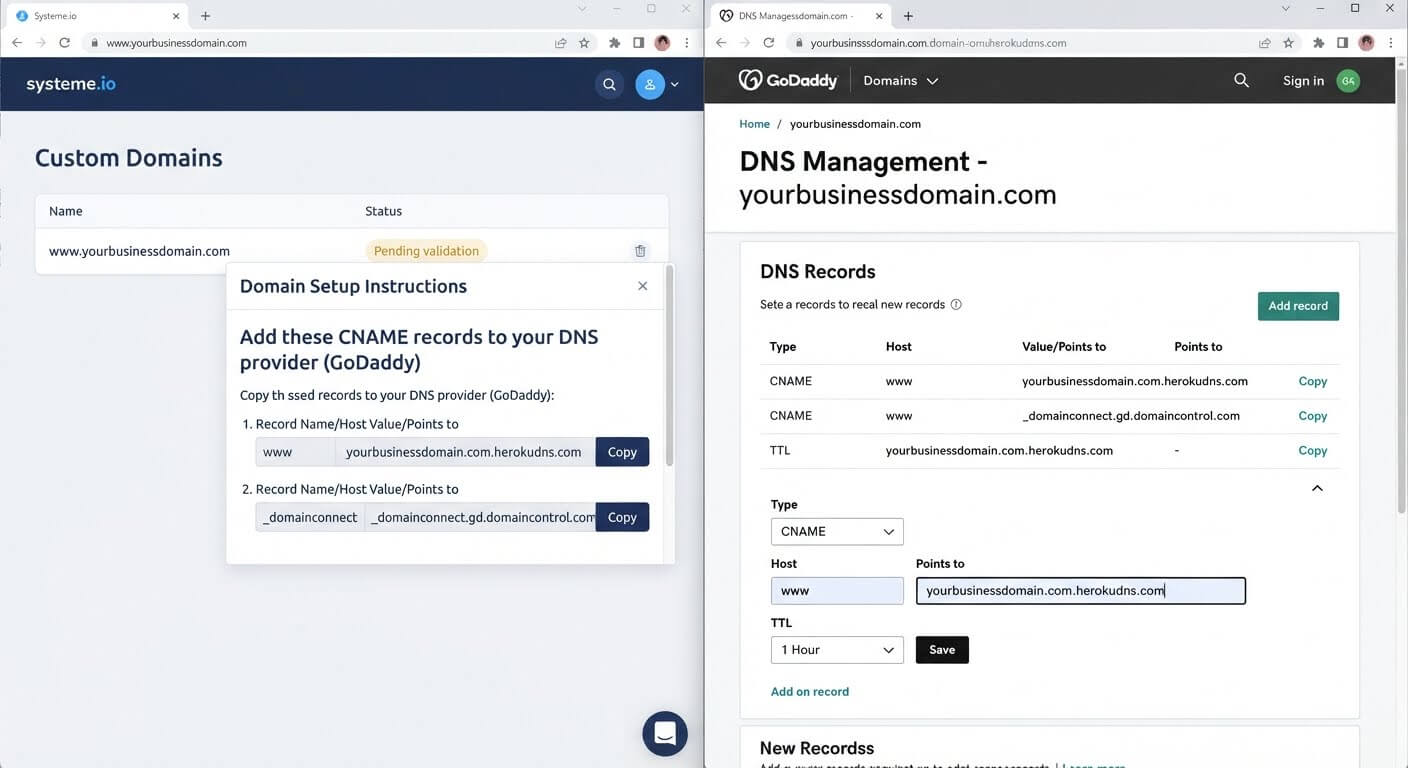
A popup will appear with two CNAME records—these are unique to your domain. Keep this window open; you'll need the exact values.
Step 2: Open GoDaddy's DNS Settings
Log into GoDaddy and go to your Domain Portfolio. Click the domain you want to connect, then find the DNS section.
You'll see a list of existing records. Don't delete anything yet—just locate where to add new ones.
Step 3: Add the First CNAME Record
Click Add New Record. Select CNAME from the Type menu.
In the Name field, type www. In the Value field, paste the first CNAME target from Systeme.io (it looks like d3bt5p0vcddwkd.cloudfront.net).
Click Save. If a "www" CNAME already exists, edit its value instead of adding a duplicate.
Step 4: Add the Second CNAME Record
Click Add New Record again. Select CNAME.
The Name field is the tricky part. Paste the text string from Systeme.io that appears before your domain name (it looks like _cf609c2bb606ce8f507b0a0e99595a1c).
In the Value field, paste the second target from Systeme.io (it ends in .acm-validations.aws).
Click Save.
Step 5: Add a Forwarding Rule (Optional but Recommended)
To make sure visitors who type your domain without "www" still reach your site, set up forwarding.
In GoDaddy's DNS section, find Forwarding. Add a forwarding rule from yourdomain.com to www.yourdomain.com.
Select Permanent (301) and save.
Step 6: Verify the DNS Records
Go to dnschecker.org and enter your full CNAME name (including your domain).
You should see green checkmarks next to your values. If not, the records haven't propagated yet or were entered incorrectly.
DNS propagation takes 24–48 hours in most cases. During this window, your domain may not work on the platform yet—that's normal.
Step 7: Check Domain Status in Systeme.io
After 24 hours, return to the Custom Domains page. Your domain status should change to "Ready to use".
If it still shows an error, double-check that both CNAMEs were entered exactly as shown, including any trailing dots or underscores.
👉 Start connecting your domain to a free funnel account here
The Easiest Way to Avoid This Issue Moving Forward
The simplest way to connect a domain is to follow the CNAME values exactly as provided, without guessing or modifying the format.
If you're starting fresh, Systeme.io's free plan includes custom domain connection on all plans, including the free tier. You can test the entire setup with a real domain before committing to a paid plan.
The honest limit: your domain stays registered at GoDaddy. You'll still pay GoDaddy's annual renewal fee (typically $10–$20 per year). Systeme.io doesn't take over the registration—it just hosts the site your domain points to.
Common Mistakes to Avoid
Trying to Transfer the Registration
Systeme.io is not a registrar. You cannot move your domain's registration from GoDaddy to Systeme.io. You're only connecting DNS records.
Entering the Domain Without "www"
The root domain setup requires you to enter your domain with "www" in front when adding it. Entering yourdomain.com without "www" will cause errors.
Missing the Underscore in the Second CNAME
The second CNAME's Name field starts with an underscore (e.g., _cf609c2...). If you drop the underscore, the record won't validate.
Deleting Existing DNS Records
Your GoDaddy account may have existing records for email or other services. Don't delete them unless they conflict with the new CNAMEs. Only edit the "www" record if one already exists.
Checking Too Soon
DNS changes don't apply instantly. If your domain doesn't work after 10 minutes, wait 24 hours before troubleshooting further.
Frequently Asked Questions
Can I transfer my domain registration to Systeme.io?
No. Systeme.io is not a domain registrar. You connect your GoDaddy domain to Systeme.io by adding DNS records, but the registration stays with GoDaddy.
Do I need to unlock my domain at GoDaddy?
No. DNS connection doesn't require unlocking the domain or getting an authorization code. Those steps are only for registrar transfers.
How long does the connection take?
The DNS records propagate in 24–48 hours. Once propagated, your domain status in Systeme.io changes to "Ready to use."
Will my domain stop working on GoDaddy?
If you were using the domain for a GoDaddy website, that site will stop working once the CNAMEs point to Systeme.io. Only connect a domain you're ready to move.
Conclusion
Connecting a GoDaddy domain to Systeme.io isn't a registrar transfer—it's a DNS connection. You keep the domain at GoDaddy and point it to Systeme.io's servers using two CNAME records.
Add the domain in Systeme.io. Copy the two CNAME values. Paste them into GoDaddy's DNS settings. Wait 24–48 hours. Verify with DNS Checker.
Systeme.io's free plan includes custom domain connection, so you can test the entire setup before paying anything.
Your domain doesn't need to move registrars to work on a new platform.
👉 Connect your domain to a free funnel platform today
Related Reading
Migrating your primary branding assets is a huge piece of the puzzle. Once your domain settings are finalized, complete your platform transition with my comprehensive Switching from ClickFunnels to Systeme.io: Step by Step Guide to drop your monthly software bills.