Someone books a call with you, and then they get nothing. No confirmation email, no reminder, no follow-up sequence. You collected their booking but not their relationship.
The fix is to connect your calendar to your email system so every booking triggers an automatic email—without you manually copying names into a list.
👉 Sync your calendar and email automation in one place here
Why This Sync Problem Happens
Calendar tools and email marketing platforms are separate products. Calendly handles scheduling. Your email platform handles contacts. Neither one knows the other exists unless you build a bridge.
Most people try to bridge them with Zapier, which adds a subscription and a fragile connection that can break silently. Others give up and add bookers to their list manually, which doesn't scale.
The root issue is that booking data and contact data live in different places. When someone books a call, their name and email exist in your calendar, but not in your email list unless you take an extra step. A platform where scheduling and email live together removes that gap entirely.
Step-by-Step Fix for Syncing Bookings to Your Email System
Step 1: Decide What the Booking Should Trigger
Before connecting anything, write down what should happen when someone books. Most creators want three things:
- A confirmation email sent to the booker
- A contact record created in the email list
- A follow-up sequence scheduled before and after the call
Pick one trigger event—new booking—and let it fire all three actions.
Step 2: Check Whether Your Platform Has Native Booking
If your email platform doesn't include a booking calendar, you'll need an integration. If it does, the sync is automatic.
Systeme.io includes a booking calendar feature inside its CRM . You create an event, set your availability, and embed the calendar on a funnel page. The booker's details are stored as a contact automatically.
Step 3: Create the Calendar Event
Go to CRM > Calendar and click Create new event . Choose between an individual event (one-on-one calls) or a group event (webinars or workshops).
Set the event name, duration, and location. If you're using Zoom or Google Meet, connect the integration first so meeting links generate automatically .
Step 4: Connect Google Calendar to Avoid Double-Bookings
Before accepting bookings, integrate your Google Calendar. This prevents double-scheduling by checking your existing events for conflicts .
In Systeme.io, go to Settings > Integrations > Google Calendar and connect your account. The Check for Conflicts option analyzes your calendars before confirming a booking .
Step 5: Set Up Booking Notification Emails
Systeme.io sends three automatic emails for every booking: a confirmation, a reminder 24 hours before, and a reminder 1 hour before .
You can customize these in the event settings. The confirmation goes to both you and the booker immediately after the slot is confirmed.
Step 6: Add the Booking Contact to Your Email List
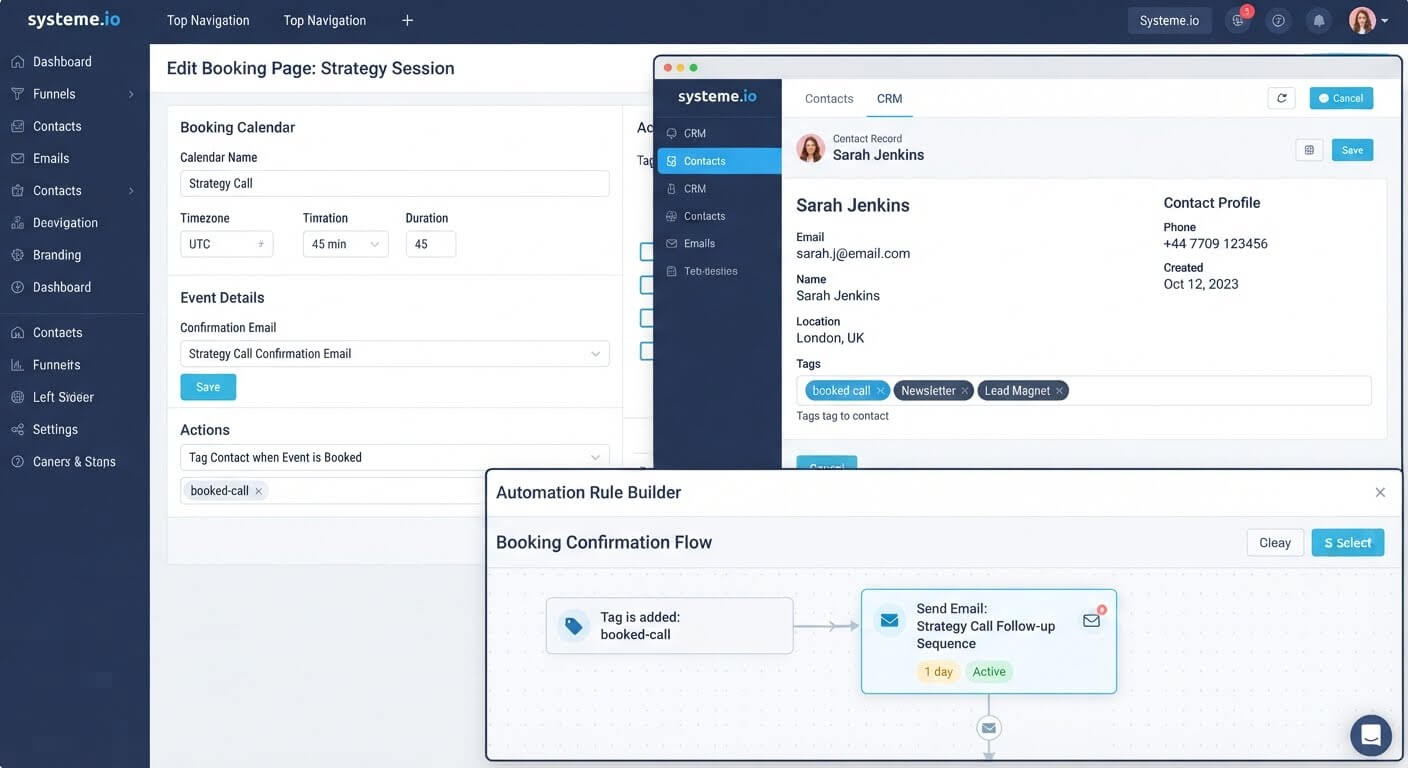
This is the step that makes the sync work for marketing. When someone books, their name and email are stored in your CRM. You can then tag them as a booker and add them to a follow-up sequence.
Because the booking and the email list share the same database, the contact record updates automatically. No Zapier, no manual import.
Step 7: Build the Follow-Up Automation
Create an automation rule triggered by the booking tag. Add actions:
- Send a pre-call email with preparation instructions
- Send a post-call email with next steps
- Add to a nurture sequence if they don't book again
This turns a single booking into an ongoing relationship.
👉 Sync your bookings and follow-up emails in one free account here
The Easiest Way to Avoid This Issue Moving Forward
The simplest way to sync calendar bookings with email marketing is to use a platform where both live together.
Systeme.io includes a booking calendar inside its CRM, alongside email campaigns and automation. When someone books, they become a contact automatically, and any tag or sequence you've set up fires without a connector .
The free plan includes 2,000 contacts and unlimited email sends, which is enough to test the booking flow and follow-up sequence before paying anything. If you outgrow those limits, the Startup plan is $17 per month.
The honest limit: Systeme.io's booking feature is newer than Calendly, and it doesn't have every advanced routing option. If you rely on complex team scheduling or paid Calendly events with specific workflows, you may keep Calendly and use its integration. But for solo creators booking discovery calls, the built-in calendar removes the sync problem entirely.
Common Mistakes to Avoid
Syncing Without a Tag
If bookers look identical to regular subscribers, you can't send them call-specific follow-ups. Tag them at booking so your automation knows who they are.
Forgetting the Reminder Emails
No-shows are expensive. The default reminders (24 hours and 1 hour before) dramatically reduce them. Check that they're enabled in the event settings .
Skipping the Conflict Check
Double-booking yourself is embarrassing and avoidable. Connect Google Calendar and enable conflict checking before accepting bookings .
Relying on Zapier for a Simple Sync
If your calendar and email live in the same platform, you don't need Zapier. Paying for a connector adds cost and a point of failure.
Not Testing the Booking Flow
Submit a test booking with your own email. Confirm the confirmation arrives, the contact appears in your CRM, and the follow-up sequence is scheduled.
Frequently Asked Questions
Can I sync Calendly with my email list without Zapier?
Calendly has native integrations with some email platforms, but ongoing sync often requires paid plans on both sides . If you want to avoid connectors entirely, using a platform with a built-in calendar removes the need for Calendly.
Does Systeme.io have a built-in booking calendar?
Yes. Systeme.io includes a calendar feature inside its CRM where you can create events, set availability, and accept free or paid bookings .
How do bookers get added to my email list automatically?
When someone books through Systeme.io's calendar, their details are stored as a contact in the CRM. You can then trigger automation rules based on the booking tag .
Can I send reminder emails before the call?
Yes. Systeme.io sends reminder emails automatically—by default, 24 hours and 1 hour before the event. You can customize the schedule in the event settings .
Conclusion
Syncing calendar bookings with your email system comes down to one thing: the booking should create a contact, and the contact should trigger an email.
You can build this with a connector, but the simpler path is a platform where scheduling and email already share the same database. Systeme.io's built-in calendar creates the contact, and the automation does the rest .
Start with one event. Set the reminders. Add a follow-up tag. Test the flow. Then let every booking start the relationship for you.
👉 Start syncing your bookings and emails for free today
Related Reading
Connecting your schedule directly to your automated workflows eliminates manual administrative drag. If you are completing this setup as part of an effort to escape overpriced email marketing suites, follow my migration manual on how to migrate email list from convertkit to systeme.io.