Moving your email list from ConvertKit to Systeme.io doesn't have to mean losing subscribers or damaging your sender reputation. The migration is a CSV export and import—but the difference between a smooth transition and a deliverability disaster comes down to how you prepare the list before importing.
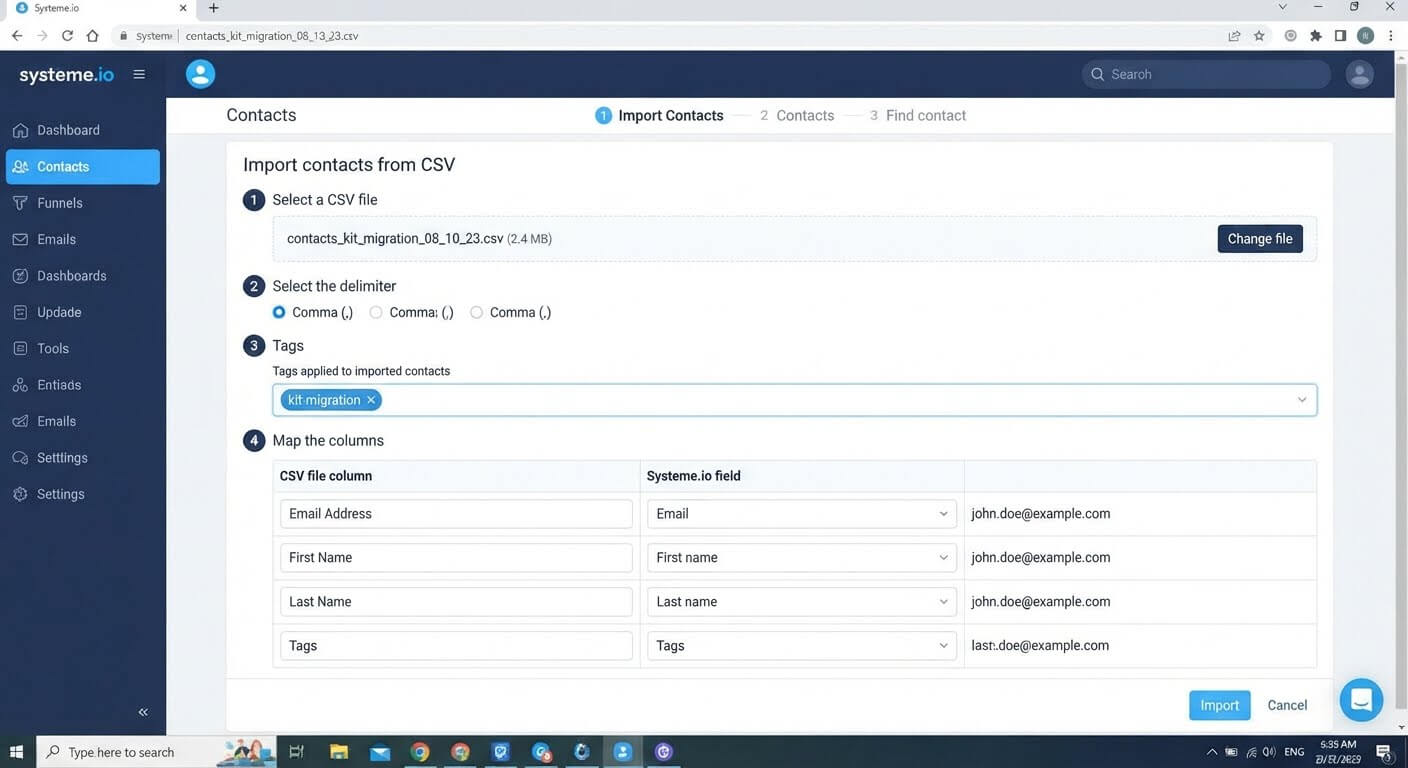
Here is the exact process, including the warm-up step most guides skip.
👉 Start your migration with a free account here
Why This Migration Problem Happens
ConvertKit (now Kit) and Systeme.io store data differently. ConvertKit exports contacts with tags and custom fields in a single CSV, but it does not export automations or sequences as files .
That means your contacts transfer, but your workflows don't. You'll need to rebuild every automation manually in Systeme.io.
The root issue is that a migration is not just a data transfer. It's a reputation transfer. Your new sending domain has no history with Gmail, Outlook, or Yahoo. If you import 5,000 contacts and immediately blast them all, your emails will land in spam—or get your domain blocked entirely .
Step-by-Step Fix for Migrating Your List Safely
Step 1: Export Your Contacts from ConvertKit
Log into ConvertKit and go to Subscribers. Apply any segment filter if you only want to migrate part of your list, then click Export .
The CSV includes email addresses, first and last names, all tags, custom fields, subscriber status, and the date each contact was created. Download the file when the notification arrives.
Step 2: Clean the List Before You Touch Systeme.io
This step is not optional. Open the CSV and remove:
- Duplicate email addresses
- Invalid or malformed addresses (missing @, typos in domains)
- Hard bounces from previous campaigns
If you have a large list and no easy way to spot bad addresses, run the file through an email verification service . Importing junk addresses into a fresh platform is the fastest way to destroy your sender reputation before you've sent a single email.
Step 3: Prepare the CSV for Systeme.io's Import Format
Systeme.io's importer accepts comma, semicolon, or pipe delimiters . Open your CSV in Excel or Google Sheets and confirm the format is clean.
Check that:
- Each column has a distinct header (Email, First Name, Tags)
- Tags are in a single column, separated by commas
- No duplicate column names exist
If ConvertKit exported tags in separate columns, consolidate them into one "Tags" column before importing.
Step 4: Create Your Tags and Automations in Systeme.io First
Before importing any contacts, build the structure they'll land in. Create the tags you'll need (e.g., "customer," "lead-magnet-downloaded") and build your welcome automation.
This matters because Systeme.io can apply a tag to every contact in the import batch . If you tag them all as "kit-migration," you can trigger a welcome sequence the moment they land—without touching them manually.
Step 5: Import the CSV into Systeme.io
Go to CRM > Contacts and click Import contacts. Select your delimiter, upload the file, and choose the tag you want applied to the entire batch .
On the mapping screen, match each column to the correct field: email, first name, last name, tags. Click Import.
Step 6: Warm Up Your Sending Domain Gradually
This is the step that protects your deliverability. Do not send to your entire list on day one.
Systeme.io's own migration guide recommends a 7 to 14-day warm-up plan starting with your most engaged contacts :
- Days 1–2: Send to 500 contacts who opened in the last 30 days
- Days 3–4: Increase to 900 highly engaged contacts
- Days 5–6: Expand to 1,500 contacts, including those active in the last 60 days
- Days 7–9: Send to 2,500–4,000 moderately active contacts
- Days 10–14: Send to the full list, excluding long-term inactive addresses
This trains Gmail and Outlook to trust your new sending domain. Skip it, and your first campaign may never reach an inbox.
Step 7: Rebuild Your Automations Manually
ConvertKit does not export sequences or visual automations . You'll need to recreate them in Systeme.io's automation builder.
Start with your most important sequence—usually the welcome email for your main lead magnet. Rebuild it, test it with a real email address, then move to the next one.
👉 Import your list and start rebuilding automations for free here
The Easiest Way to Avoid This Issue Moving Forward
The simplest way to avoid a broken migration is to prepare the list and the warm-up plan before you import a single contact.
Systeme.io's free plan includes 2,000 contacts and unlimited email sends, which is enough to import a cleaned list and test the warm-up process before paying anything. The importer applies a tag to the entire batch, so your welcome sequence can fire automatically as contacts land .
If your ConvertKit list exceeds 2,000 contacts, the Startup plan is $17 per month for 5,000 contacts. That's the tier you'll need for a mid-sized list, and it's still below ConvertKit's paid plans at the same subscriber count.
The honest limit: Systeme.io cannot import ConvertKit automations. Every sequence, rule, and visual workflow must be rebuilt by hand. If you have dozens of complex automations, budget a full day for that rebuilding work—not an afternoon.
Common Mistakes to Avoid
Importing Without Cleaning First
A dirty list from ConvertKit becomes a dirty list in Systeme.io. Remove duplicates and hard bounces before import .
Sending to the Full List Immediately
A fresh sending domain has no reputation. Warm it up over 7–14 days, starting with your most engaged contacts .
Forgetting to Tag the Import Batch
If every contact in the file gets a "kit-migration" tag, you can trigger a welcome sequence immediately. Without a tag, they sit in your list doing nothing .
Expecting Automations to Transfer
ConvertKit does not export sequences or automations . Rebuild them manually in Systeme.io's automation builder.
Ignoring Unsubscribed Contacts
Systeme.io can import unsubscribed contacts, and they'll automatically be marked as unsubscribed . But if you're not careful, you might accidentally re-subscribe them during mapping. Check the status field before importing.
Frequently Asked Questions
Can I export my ConvertKit automations and import them into Systeme.io?
No. ConvertKit does not export automations or sequences as files . You must rebuild them manually in Systeme.io's automation builder.
How long does the migration take?
A list under 2,000 contacts can be imported in under an hour. The warm-up process takes 7–14 days after import, and rebuilding automations depends on how many you have.
Will I lose my subscribers during migration?
No, if you export correctly. The CSV contains every contact, and Systeme.io's importer preserves them. Check that the contact count matches after import.
Do I need to warm up my domain if I only have a small list?
Yes. Even a list of 500 contacts sent to a brand-new domain can trigger spam filters. Start with your most engaged 100–200 contacts and expand gradually.
Can I import unsubscribed contacts?
Yes. Systeme.io will mark them as unsubscribed automatically and they won't receive emails through the platform .
Conclusion
Migrating from ConvertKit to Systeme.io comes down to four steps: export, clean, import, warm up.
The export is straightforward. The cleaning is where you protect your reputation. The import applies a tag to the whole batch. The warm-up is what keeps your emails out of spam.
Systeme.io's free plan covers the import and the first few days of warm-up without charging you. If your list is larger than 2,000, the Startup plan at $17 per month gives you room to grow.
Your list is the asset. Move it carefully, and the new platform starts with a clean reputation instead of a damaged one.
👉 Start your migration for free today
Related Reading
Moving your database to a more unified system is a fantastic way to streamline your business. Once your contacts are safely moved, read my guide on how to sync my calendar booking with an email marketing system to fully automate your client onboarding.