Setting up an email autoresponder doesn't require a developer or a single line of code. The whole process is point-and-click: pick a trigger, write an email, choose when it sends, and save. Here is the exact path.
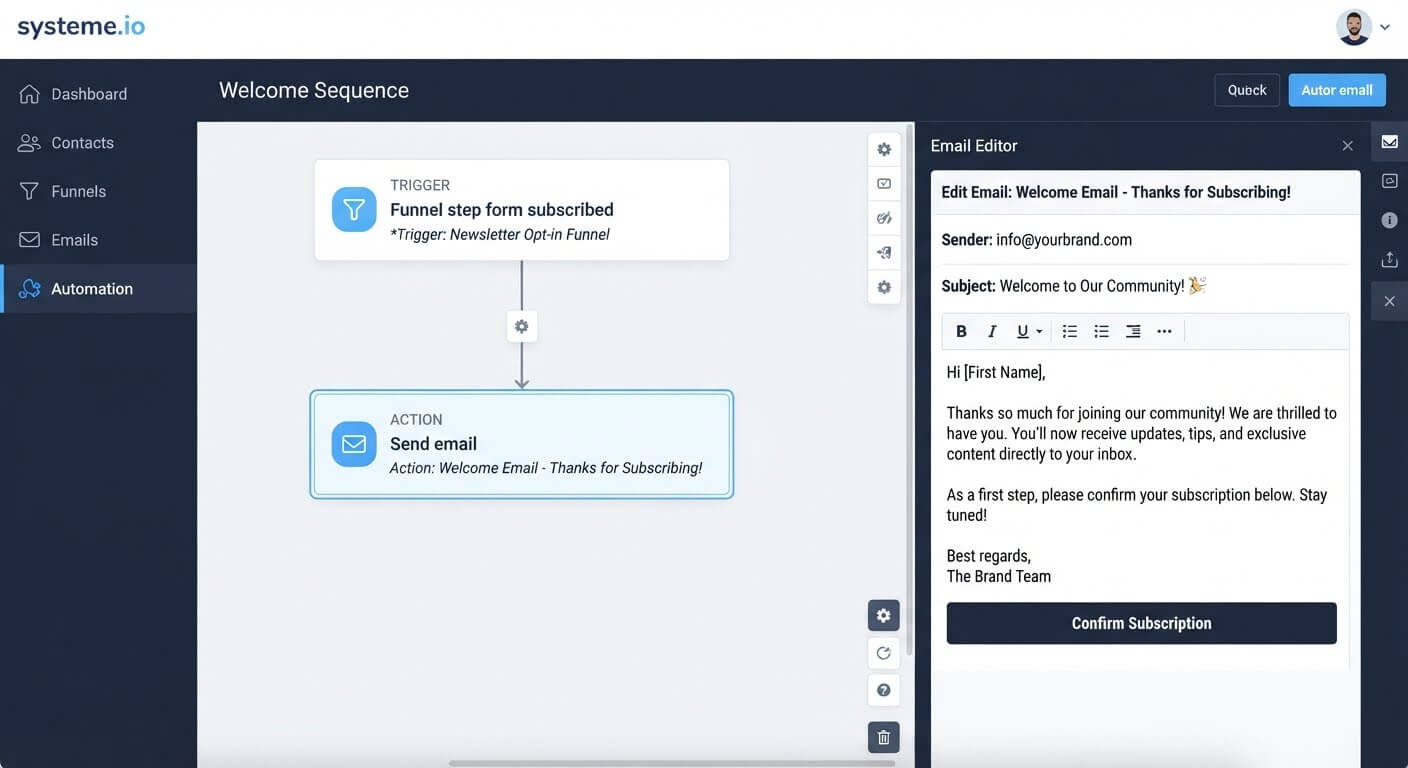
Systeme.io includes autoresponders in its automation builder, with no coding required and no separate tool to connect.
👉 Set up your first autoresponder without coding here
Why This Error Happens
Most tutorials about autoresponders assume you already understand the difference between a trigger, a condition, and an action. They jump into "add a delay node" or "configure the webhook" without explaining what those words mean.
The technical language is the real barrier, not the actual work. An autoresponder is simply an email that sends automatically when something happens—like a form submission or a tag being applied. That's it.
The root issue is that email platforms use jargon to describe simple concepts. "Workflow," "trigger," "sequence," and "automation rule" all describe the same basic idea: when X happens, do Y. Once you map the jargon to plain English, the setup becomes a checklist.
Step-by-Step Fix for Setting Up an Autoresponder Without Code
Step 1: Decide What Should Trigger the Email
Every autoresponder needs a starting event. The most common triggers are:
- Form submission: Someone fills out your opt-in form
- Tag applied: Someone gets tagged with a specific label
- Purchase: Someone buys a product
- New contact created: Anyone added to your list
Pick one trigger. You can add more later, but one is enough to start.
Step 2: Create an Automation Rule
In Systeme.io, go to Automations and click Create rule. A window opens with two columns: Trigger and Action.
This is the entire autoresponder setup. You're telling the system: when the trigger happens, do the action.
Step 3: Add the Trigger
Click the + icon under Trigger. From the list, select the event that starts the autoresponder.
If you want the email to send when someone fills out your opt-in form, select Funnel step form subscribed and choose the specific page that contains the form.
If you want it to send when a tag is applied, select Tag added and choose the tag.
Step 4: Add the Email Action
Click the + icon under Action and select Send email. A new email block appears.
Click the + icon on the email block to open the editor. Write your subject line, your message, and any personalization fields like the contact's first name.
Save the email. Then save the rule.
Step 5: Test the Autoresponder
Trigger the automation yourself. Submit the form or apply the tag to a test contact.
Check two things:
- Does the contact appear in your CRM?
- Does the email arrive in your inbox?
If the email doesn't arrive, the most common causes are an inactive rule, the wrong trigger selected, or an unsaved email.
Step 6: Add a Delay If You Want
By default, the email sends immediately after the trigger. If you want it to send later—for example, an hour after signup—add a Delay action between the trigger and the email.
Click the + icon under the trigger and select Delay. Set the duration. Then add the email action after the delay.
👉 Build your autoresponder with no code using this free platform here
The Easiest Way to Avoid This Issue Moving Forward
The simplest way to set up autoresponders without coding is to use a platform where the builder is visual and the triggers are named in plain English.
Systeme.io's automation builder shows your workflow as a diagram with connected blocks. You can see the trigger, the delay, and the email action in one view. Adding or removing a step is a matter of clicking a plus icon.
There's no code editor, no API key to paste, and no webhook to configure. The free plan includes automation rules, 2,000 contacts, and unlimited email sends, so you can build and test a working autoresponder before upgrading.
Common Mistakes to Avoid
Forgetting to Save the Email
The rule won't send an email that hasn't been saved in the editor. Save the email first, then save the rule.
Selecting the Wrong Trigger
If you choose "Tag added" but your form doesn't apply a tag, the autoresponder will never fire. Match the trigger to what actually happens in your funnel.
Adding a Delay Before You Test
Test the autoresponder without a delay first. Once you confirm the email sends, add the delay and test again. This isolates problems.
Building a Complex Sequence Before the First Email Works
Start with one email. Confirm it sends correctly. Then add the second email, the third, and the delays between them.
Frequently Asked Questions
Do I need coding skills to set up an autoresponder?
No. Autoresponders are built with point-and-click rule builders. You select a trigger, add an email action, and save. No code is involved.
What's the difference between an autoresponder and a broadcast?
An autoresponder sends automatically based on a trigger. A broadcast is a one-time email you send manually to a group.
How many autoresponders can I create on the free plan?
Systeme.io's free plan includes unlimited email sends and one automation rule. If you need more rules, the paid plans unlock additional automation capacity.
Can I send a series of emails instead of just one?
Yes. Chain multiple email actions together with delays between them. The first email sends immediately, the second after a set delay, and so on.
Conclusion
Setting up an autoresponder is simpler than the jargon suggests. Pick a trigger, add an email, save the rule. That's a working autoresponder.
You don't need code, an API key, or a developer. You need a visual automation builder and a clear idea of what should start the sequence.
Systeme.io includes the automation builder on its free plan. You can build a welcome email, a delivery sequence, or a tag-triggered follow-up without writing a single line of code.
Start with one email. Test it. Then add the next step.
👉 Start building your autoresponder for free today
Related Reading
Automating your initial email communication builds a great foundation for your audience. To scale your sales passively using visual presentations next, check out my tutorial on how to build an automated webinar funnel without heavy tech skills.