A customer pays you, and then you manually add them to your email list. That works for the first ten sales. By the hundredth, it's a full-time job—and one you'll eventually forget to do.
Connecting a payment gateway to your email list automatically means every buyer gets tagged, added, and enrolled without you touching anything. Here is the exact setup, and the one button most people miss.
👉 Connect payments to your email list automatically for free here
Why This Connection Error Happens
Payment gateways and email platforms are separate products. Stripe processes the payment. Your email tool stores contacts. Neither one knows the other exists unless you build a bridge.
Most people try to bridge them with Zapier, which adds a monthly cost and a fragile connection that can break silently. Others give up and add buyers to their list manually, which doesn't scale.
The root issue is that payment processing and email marketing are treated as separate functions. In a platform where both live together, a purchase can trigger an email action directly—no bridge, no integration, no manual work.
Step-by-Step Fix for Connecting Payments to Your Email List
Step 1: Confirm Your Payment Gateway Is Connected to Your Checkout
Before you can trigger an email on purchase, the payment itself needs to work. In your platform's settings, connect Stripe or PayPal and verify that a test transaction processes correctly.
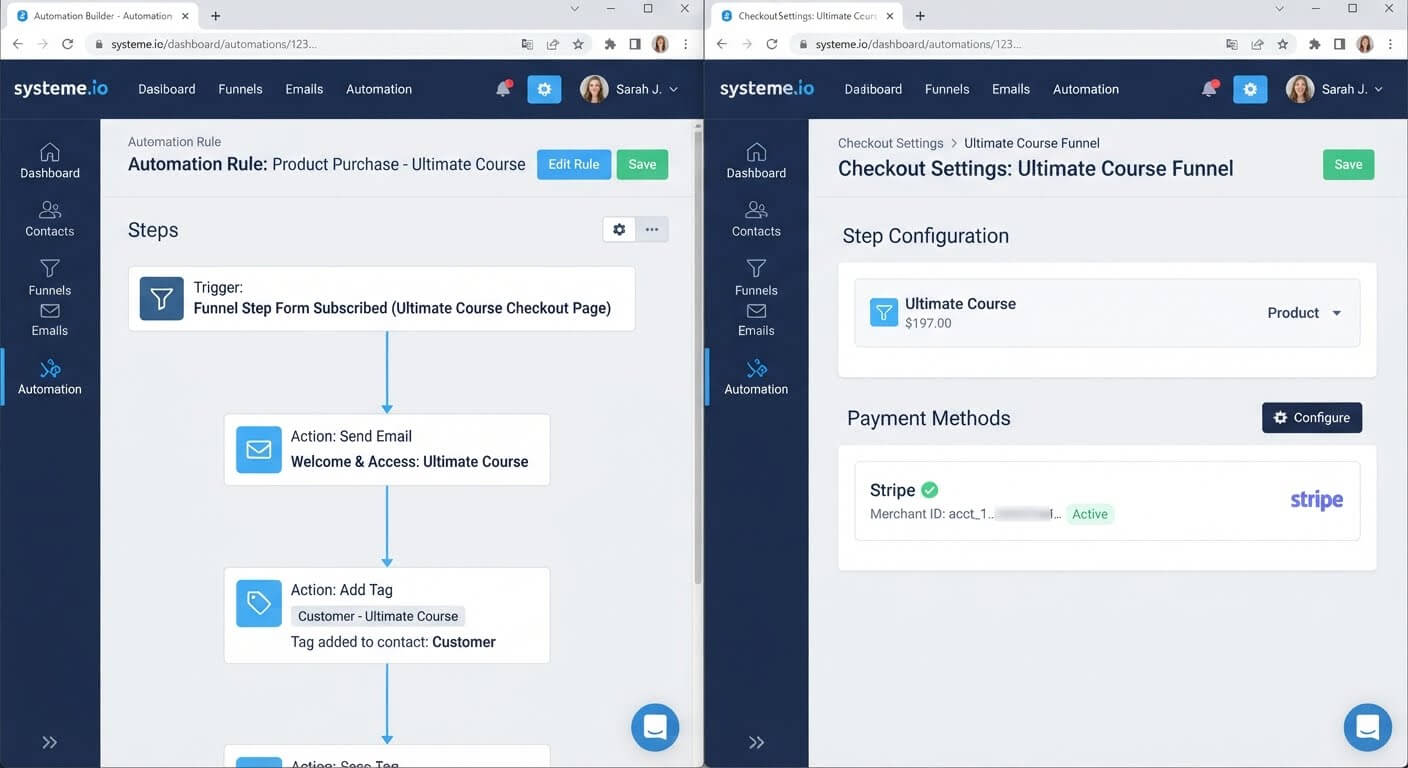
Systeme.io lets you connect Stripe and PayPal inside the settings area. Once connected, checkout buttons on your pages can process real payments.
Step 2: Set the Checkout to Create a Contact
When someone buys, they should be added to your contact list automatically. In Systeme.io, checkout forms create contacts by default. The buyer's name, email, and purchase details are stored in the CRM.
Confirm this is working by running a test purchase and checking the Contacts list.
Step 3: Create an Automation Rule Triggered by Purchase
Go to Automations and click Create rule. Under Trigger, select the purchase event—usually labeled something like "Order created" or "Customer purchases a product."
Then under Action, select "Send email" and write the email you want the buyer to receive.
This rule is the connection. When a purchase happens, the trigger fires, and the email sends automatically.
Step 4: Tag Buyers for Segmentation
Add a tag action to the automation rule. When someone purchases, apply a tag like "customer" or the specific product name.
This lets you send targeted emails to buyers later—different from what non-buyers receive.
Step 5: Set Up the Delivery Email
The first email a buyer receives should confirm the purchase and deliver what they paid for. If it's a digital product, attach the file (up to 5 MB) or include a download link.
If it's a course, include login instructions. If it's a coaching package, include next steps for booking.
Step 6: Test the Entire Flow
Make a real test purchase with your own card. Confirm:
- The payment processes
- The buyer appears in your CRM with the correct tag
- The delivery email arrives
- Any follow-up sequence is scheduled
Fix any broken links or missing emails before sending traffic.
👉 Build your purchase-to-email automation for free here
The Easiest Way to Avoid This Issue Moving Forward
The simplest way to connect a payment gateway to an email list is to use a platform where both already share the same database.
Systeme.io includes checkout, CRM, and email automation in one account. When a purchase happens, the buyer is automatically added as a contact with a tag, and the email sequence fires. There's no Zapier, no webhook, and no manual import.
The free plan includes checkout with 0% transaction fees, 2,000 contacts, and unlimited email sends. You can build the entire flow without paying a monthly fee.
Common Mistakes to Avoid
Relying on Zapier for a Simple Purchase-to-Email Connection
Zapier works, but it adds a subscription and a fragile link. If the app connection expires, buyers stop receiving emails silently. A native integration removes that risk.
Forgetting to Tag Buyers
If every contact looks the same, you can't send targeted follow-ups. Tag buyers at the moment of purchase so you can email them differently from non-buyers.
Skipping the Test Purchase
A purchase-to-email flow that doesn't send the delivery email is broken. Test it before sending traffic.
Attaching Files That Are Too Large
Most platforms limit email attachments to 5 MB. For larger files, upload to cloud storage and include a download link.
Frequently Asked Questions
Can I connect Stripe to my email list without Zapier?
Yes. If your checkout and email platform are in the same account, a purchase can trigger an email directly. Systeme.io includes both functions natively.
How do buyers get added to my email list automatically?
When someone completes checkout, they're created as a contact in your CRM. You can then trigger an email sequence based on that purchase event.
Can I send different emails to buyers versus non-buyers?
Yes. Tag buyers when they purchase, then use that tag to filter your contacts and send targeted campaigns.
What happens if the delivery email fails?
The buyer may not receive what they paid for. Test the delivery email before launching, and check your automation logs after the first few sales.
Conclusion
Connecting a payment gateway to an email list automatically comes down to one rule: when a purchase happens, trigger an email action.
You don't need Zapier or a manual import. You need a platform where checkout and email live in the same account, so the purchase event is already available to the automation builder.
Systeme.io includes checkout, CRM, and email automation on its free plan. Set the trigger, write the email, add a tag, and test. That's the entire connection.
Your buyers should hear from you immediately after purchase—not hours later when you remember to check your inbox.
👉 Start connecting payments to emails for free today
Related Reading
Automating your post-purchase tags ensures instant customer delivery. To build out the rest of your front-end conversion pathways completely on your own, see my blueprint on how to create an automated sales system without a web designer.