Yes, you can move a WordPress blog to Systeme.io—but there is no automatic one-click import. Unlike moving contacts (which is a simple CSV transfer), your blog posts must be rebuilt manually inside Systeme.io's blog editor, or migrated by the platform's paid support team.
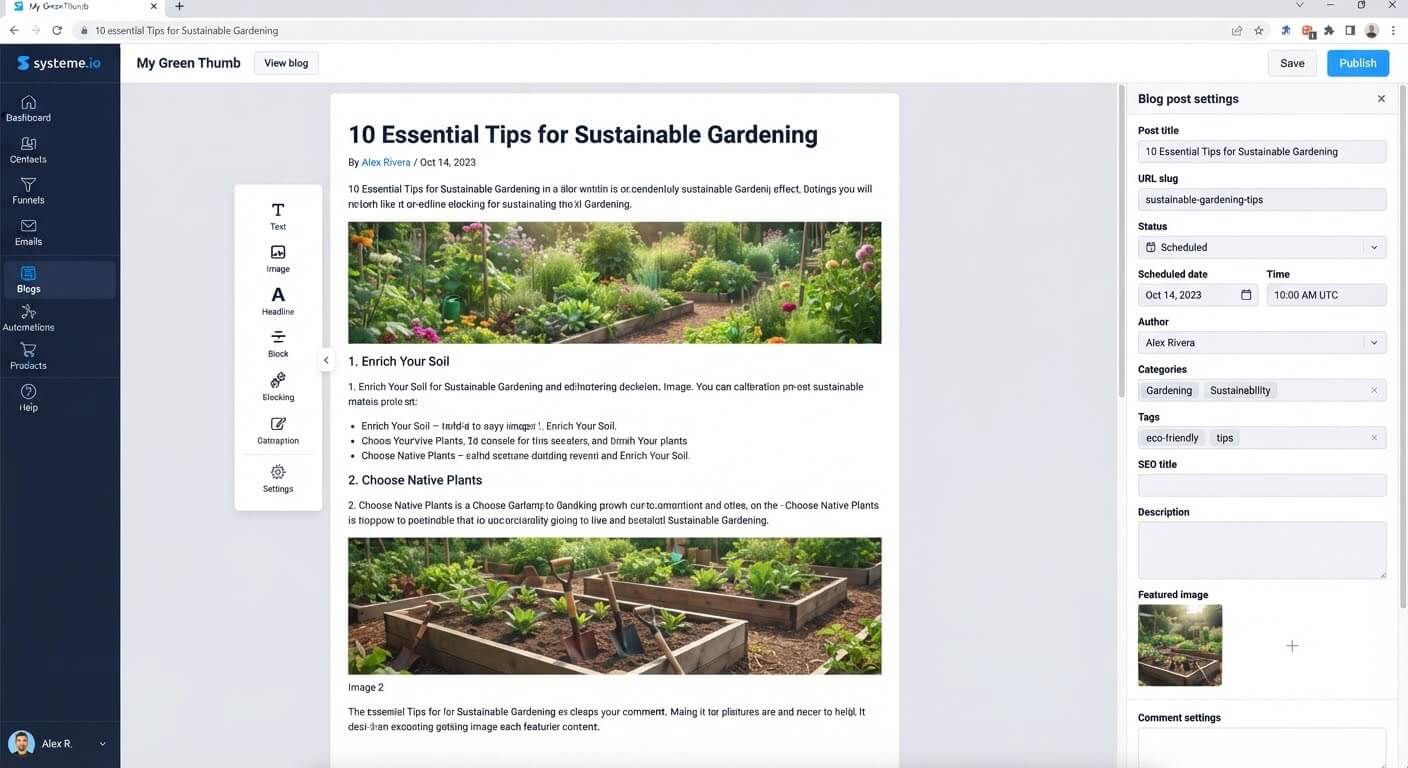
The good news is that Systeme.io's blog builder is straightforward, and the migration service can handle the heavy lifting if you qualify.
👉 Start rebuilding your blog on a free platform here
Why This Migration Problem Happens
WordPress and Systeme.io are fundamentally different platforms. WordPress is an open-source CMS that stores content in a MySQL database. Systeme.io is a hosted funnel platform that stores content in its own proprietary structure.
There is no native WordPress importer inside Systeme.io. The platform's blog feature is built for creating new posts, not for pulling in existing ones.
The root issue is that your blog isn't just text—it's a collection of posts, images, categories, and URLs. Moving it means recreating each piece inside a new system, which is why a manual rebuild is usually required.
Step-by-Step Fix for Moving Your Blog
Step 1: Export Your WordPress Content
Log into your WordPress dashboard. Go to Tools > Export and select All content. This downloads an XML file containing your posts, pages, comments, and categories.
You can also export individual posts as HTML or copy the text directly from the WordPress editor. The XML file is useful for reference, but Systeme.io cannot import it directly.
Step 2: Download All Blog Images
Your blog posts likely contain images hosted on WordPress. Download each image from the Media Library before you leave.
If you skip this step, your images will disappear once you cancel your WordPress hosting. Save them in a folder organized by post name.
Step 3: Check If You Qualify for the Free Migration Service
Systeme.io offers free business migration for customers on the Unlimited monthly plan or any annual plan. According to their help documentation, this migration includes blogs and articles .
The migration team manually copies your content to Systeme.io. You provide your old account credentials, and they handle the rebuilding. The average migration takes 17 days, though this varies by content volume .
If you're on a free plan, this service is not available—you'll need to rebuild manually.
Step 4: Rebuild Posts Manually (If Not Using Migration Service)
In Systeme.io, go to Blog and click Create post. Use the editor to recreate your article:
- Paste the text from your WordPress post
- Upload the images you downloaded in Step 2
- Add the same headings and formatting
- Set the publish date to match the original if preserving chronology matters
Repeat this for each post. A 20-post blog can take a full day to rebuild manually.
Step 5: Recreate Categories and Tags
WordPress uses categories and tags to organize posts. Systeme.io's blog may not have identical taxonomy features, so check what's available in the blog settings.
You can use post titles or internal linking to group related content if categories aren't available.
Step 6: Update Internal Links and URLs
Your WordPress URLs follow a pattern like yourdomain.com/blog/post-name. Systeme.io may generate different slugs.
After migrating, audit every internal link in your posts. Update them to point to the new Systeme.io URLs. If you're keeping the same domain, set up 301 redirects from old URLs to new ones to preserve search traffic.
Step 7: Connect Your Domain and Test
Point your domain's DNS records to Systeme.io (if you haven't already). Then visit your blog on the new platform.
Check that:
- Posts load correctly
- Images display
- Links work
- The blog page appears in your site navigation
👉 Start building your new blog on a free account here
The Easiest Way to Avoid This Issue Moving Forward
The simplest way to move a WordPress blog is to use the free migration service if you qualify—it eliminates the manual rebuild entirely.
If you're on the Unlimited or annual plan, contact support after subscribing and request the migration. The team handles blogs and articles as part of the service . You keep your old WordPress site running during the process, so nothing breaks while they work.
If you're on the free plan, the trade-off is time. Rebuilding posts manually is straightforward but slow. For a small blog (under 10 posts), it's a few hours. For a large blog, the time cost may justify upgrading to access the migration service.
The honest limit: even the migration service copies content—it doesn't preserve your WordPress theme, plugins, or custom post types. Your blog will look different on Systeme.io because it uses its own templates.
Common Mistakes to Avoid
Assuming There's a One-Click WordPress Import
Systeme.io does not have a WordPress importer. The XML export file cannot be uploaded and converted automatically. Manual rebuilding or the migration service are the only paths.
Cancelling WordPress Before Downloading Images
Once your WordPress hosting expires, your Media Library becomes inaccessible. Download every image before you cancel.
Forgetting to Set Up Redirects
If your old blog URLs had search rankings, losing them means losing traffic. Map old URLs to new ones and configure 301 redirects.
Migrating Without a Backup
Export your WordPress XML file and keep a local copy of all images. If something goes wrong during the rebuild, you still have the source material.
Expecting Identical Design
Systeme.io's blog templates won't match your WordPress theme. Accept that the design will change—the content is what transfers.
Frequently Asked Questions
Can I import my WordPress posts directly into Systeme.io?
No. Systeme.io does not have a WordPress importer. You must either rebuild posts manually or use the free migration service available on Unlimited and annual plans .
Does the free migration service include blog posts?
Yes. According to Systeme.io's help documentation, the migration includes blogs and articles when you're on the Unlimited monthly plan or any annual plan .
How long does the migration take?
The average migration takes 17 days, but the timeline depends on the volume and complexity of your content. The migration team provides an estimate once they review your account .
Will my blog look the same on Systeme.io?
No. Systeme.io uses its own blog templates, so the design will differ from your WordPress theme. The text and images transfer, but the layout changes.
Conclusion
Moving a WordPress blog to Systeme.io is possible, but it's not automatic. You have two paths: rebuild each post manually on the free plan, or use the free migration service if you're on an Unlimited or annual plan.
The manual path costs time. The migration service costs a subscription but saves days of work. Either way, download your images and export your content before you cancel WordPress.
Your blog content is valuable. Move it carefully, and the new platform gives you a blog that connects directly to your funnels, email list, and checkout—all in one account.
👉 Start rebuilding your blog for free today
Related Reading
Migrating your website content to a simpler platform makes managing your online business incredibly easy. To move your existing newsletter audience over to your new dashboard at the same time, follow my walkthrough on How to Import a CSV List into Systeme.io Without Losing Tags.