Moving courses from Teachable to Systeme.io is possible, but it is not a one-click automated transfer. Teachable does not offer a native export feature that packages your course into a single file you can import elsewhere . Instead, the process requires manually downloading your content and rebuilding it inside Systeme.io.
The good news is that Systeme.io's course builder is straightforward, and your student list can be migrated via CSV. Here is the exact process, including the step most guides skip.
👉 Start rebuilding your course in a free Systeme.io account here
Why This Migration Problem Happens
Teachable stores course content in a proprietary format that cannot be read by other software. According to Teachable's own help documentation, there is no native feature to export a course as a single unit, and their support team cannot perform a full export on your behalf .
This means every video, PDF, and quiz must be downloaded individually. Teachable explicitly states that users must download each file one by one—there is no bulk download option for course assets .
The root issue is that course platforms are built as walled gardens. Your content lives inside their system, and moving it out requires manual effort. Systeme.io's course sharing feature only works between Systeme.io accounts, not from external platforms .
Step-by-Step Fix for Moving Your Courses
Step 1: Export Your Student List First
Before you touch any course content, export your students. This is the most important asset you own.
In Teachable, go to Users > Students, filter by course if needed, and click Export CSV . The file includes names, emails, enrollment dates, and completion percentages.
Do this first. Once you cancel Teachable, you may lose access to this data .
Step 2: Download All Course Assets Manually
Go through each course in Teachable and download every piece of content:
- Videos (download the source files, not just the player links)
- PDFs and worksheets
- Quiz questions and answers
- Any images used in lessons
This is the time-consuming part. Budget a full day for a mid-sized course. There is no shortcut here .
Step 3: Rebuild the Course Structure in Systeme.io
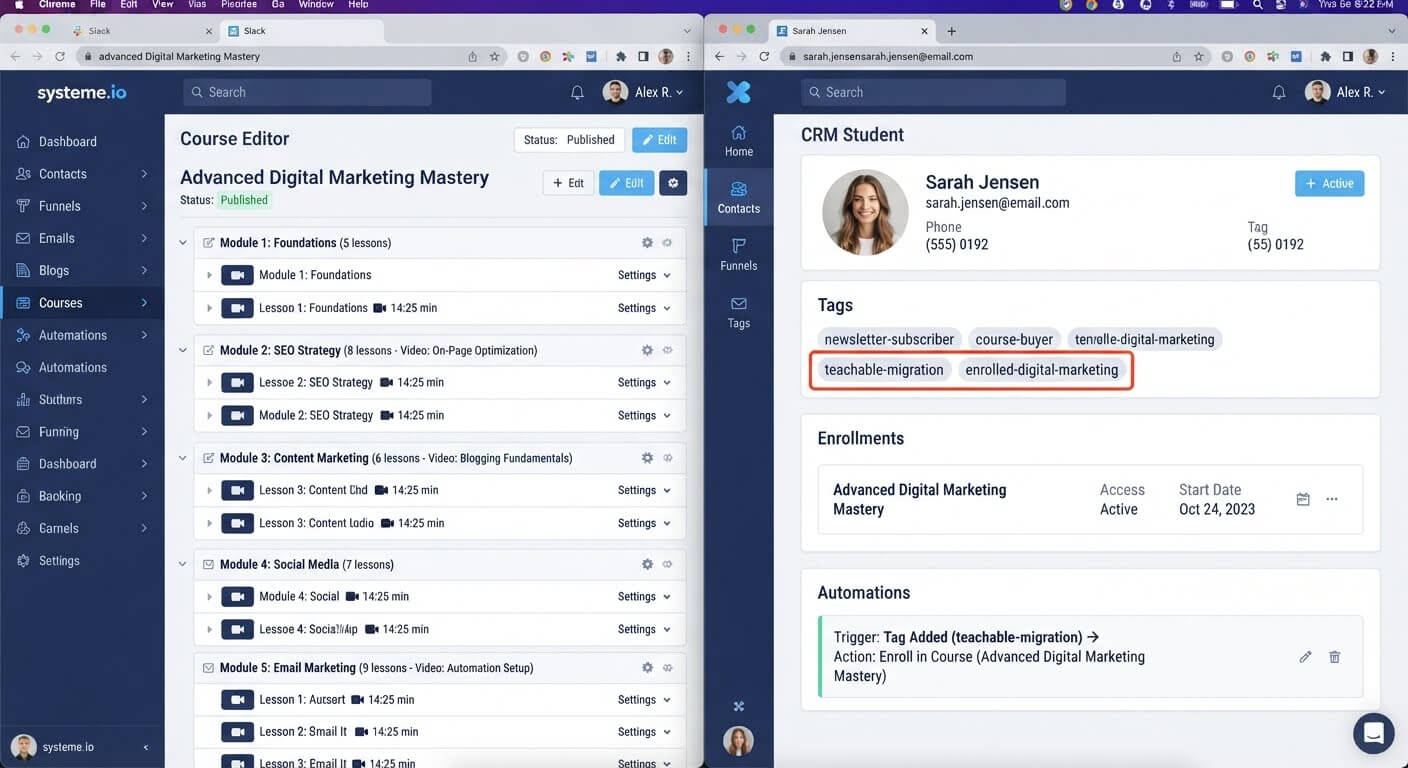
In Systeme.io, go to Assets > Courses and create a new course. Rebuild your modules and lessons one by one.
Upload the videos and files you downloaded. Recreate quizzes manually. The interface is drag-and-drop and does not require coding.
Systeme.io's course builder supports modules, lectures, and quizzes, though it will not automatically inherit your Teachable structure—you are rebuilding from scratch .
Step 4: Import Your Student List and Grant Access
Import your exported CSV into Systeme.io's CRM. Apply a tag like "teachable-migration" to the entire batch.
Then create an automation rule: when a contact has that tag, enroll them in the corresponding course. Systeme.io uses tags to determine course access automatically .
For smaller groups, you can also add students manually by entering their email addresses inside the course settings .
Step 5: Test Student Access Before Notifying Anyone
Create a test contact using an email you control. Apply the migration tag. Confirm that the automation enrolls you in the course and that all lessons load correctly.
Do not send a migration announcement to your students until you have confirmed the flow works end-to-end.
👉 Rebuild your course and automate student enrollment for free here
The Easiest Way to Avoid This Issue Moving Forward
The simplest way to avoid a painful migration is to choose a platform where your course content is portable and your student access is tied to a contact database you control.
Systeme.io's free plan includes one course, which is enough to rebuild and test your first course before upgrading. If you have multiple courses, the Startup plan is $17 per month for five courses and 5,000 contacts.
The honest limitation: Systeme.io does not import Teachable course files automatically. Every video, PDF, and quiz must be recreated manually. If you have dozens of courses with complex quizzes and drip schedules, budget several days for the rebuild.
But once the course lives in Systeme.io, it is connected to your email list, checkout, and automation in one account. Future changes don't require another migration.
Common Mistakes to Avoid
Cancelling Teachable Before Exporting Students
Once your Teachable account closes, your student CSV may become inaccessible. Export first, cancel later .
Expecting a One-Click Import
Teachable does not provide a course export file, and Systeme.io does not import Teachable courses. Manual rebuilding is required .
Downloading Videos in the Wrong Format
Some video players only let you copy a link, not download the file. Use browser tools or screen recording if needed, but verify the quality before uploading to Systeme.io.
Forgetting to Test Student Access
A course that looks correct in the editor may not enroll students properly through automation. Run a test enrollment before announcing the move.
Skipping the Migration Tag
If you do not tag the imported students, the automation cannot identify who should be enrolled. Apply a batch tag during import .
Frequently Asked Questions
Can I export my entire Teachable course as a file?
No. Teachable does not support exporting a course as a single unit. You must download each video and file individually .
Does Systeme.io have an importer for Teachable courses?
No. Systeme.io can import contacts via CSV, but course content must be rebuilt manually inside its course builder.
How do I move my students to Systeme.io?
Export your student list from Teachable as a CSV, import it into Systeme.io's CRM, and use a tag-triggered automation to enroll them in the rebuilt course .
Will my students lose their progress?
Yes. Completion percentages and quiz scores are not transferable. Students will start fresh in the new platform, though their access can be restored immediately.
How long does the migration take?
A single course with 20-30 lessons takes roughly one full day to download and rebuild. Add another day for automation testing and student communication.
Conclusion
You can move courses from Teachable to Systeme.io, but it is a manual rebuild, not an automated migration.
Export your student list first. Download every video and file individually. Rebuild the course structure inside Systeme.io. Tag and import your students. Test the enrollment automation before notifying anyone.
Systeme.io's free plan includes one course, which is enough to prove the process works for your content. If you have multiple courses, the Startup plan at $17 per month gives you room to rebuild them all.
The migration takes effort. But once it is done, your course, email list, and checkout live in one account—and the next migration is a choice, not a necessity.
👉 Start rebuilding your course for free today
Related Reading
Consolidating your training lectures into a unified platform strips all technical friction from your routine. To transition your subscriber lists and audience databases over to your new dashboard at the same time, follow my manual on How to Export Contacts from Mailchimp and Import to Systeme.io.